Tuesday, 26 July 2011

Acces Denied - Secure Store Service

Hi Friends and Neiughbours,

Last week I had the task of fixing a bug with a  SharePoint application. This application was recently ported from 2007 to 2010.  The application connects to a third party Java web application, JIRA, using SharePoint Secure Store Service. If you don't know what JIRA is check it out here: http://en.wikipedia.org/wiki/JIRA

As you know Security Store Service replaced  Microsoft Office SharePoint Server 2007 Single Sign On feature.

This SharePoint application has a cool feature that allows individual users to map their SharePoint account to JIRA. The user only has to specify her JIRA credentials, user name and password, and these details are saved into the Secure Store service of SharePoint 2010.

The bug was that the UI was telling the users that their credentials were being saved when in fact they weren't.

After spending some time debugging the application I found out that an exception was not being handled correctly. Once that I introduced the right exception handler to the code I could see that I was getting an "Access Denied" message.  The previous code had two fault:

1. Catching the exception with a generic Exception object.
2. Not propagating the Exception message to the UI.

This is the previous code:

public static void SetCredentials(string sharePointUserName,string userName, string userPassword, string targetApplicationID)
..............
{

 SPClaim claim = SPClaimProviderManager.CreateUserClaim(currentuser,   SPOriginalIssuerType.Windows);
 SecureStoreServiceClaim ssClaim = new SecureStoreServiceClaim(claim);
  SPServiceContext context =t
  SPServiceContext.GetContext(SPServiceApplicationProxyGroup.Default,   SPSiteSubscriptionIdentifier.Default);

 SecureStoreServiceProxy ssp = new SecureStoreServiceProxy();
 ISecureStore iss = ssp.GetSecureStore(context);
 iss.SetUserCredentials(targetApplicationID, ssClaim, credentials);
 }
catch (Exception ex)

 {
   ErrorHelper.AppendEntryToEventVwr("SharePoint Application", ex, string.Empty);
   }
 finally
  {
   SPContext.Current.Site.RootWeb.AllowUnsafeUpdates = false;
  }

Although the code is handling the exception it only logs the error to the window registry, however it doesn't inform the user that something wrong happens.



Thursday, 21 July 2011

Simply use of EFM and Lambda

Recently I had a request from a client to make enhancements to an existent application. They wanted to add more options to two lists, drop down lists.

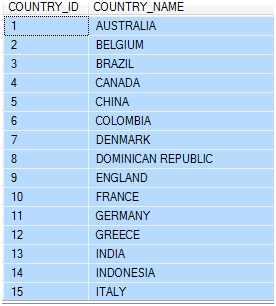
One of these lists contain countries where their products were manufactured. In the original list there were around 37 countries. They wanted to add more countries to this list. However there was a catch

The data for the countries drop down list is stored on a table called Countries. 


Now there is the need to add more countries to the list, say 160 more countries.
The only issue is that, the main table, let’s called products already got rows of data pointing to the country id of the Country table.
For example several of the products have a 7 on their MANUFACTARED_ID column meaning these product are manufactured in Denmark. We can’t slide new countries between the existing ones. The current relationship of the product and the countries were they are manufacture would be broken!
What about putting the new countries, 160 right in the end of the table?
In this way the existing countries keep their ID’s and any references to this id, COUNTRY_ID, by any of our database entities remain valid.

This is a potential solution; the only issue with this approach is that all the new countries will come last!
So if Albania and Afghanistan are added they will not come before Australia but they will be placed all the way down the list.

So what we need to do is to modify the code so we retrieve and sort the countries before we populate the drop down list. By the way the existing code didn't sort the countries so We need to change this:

public List RetrieveCountries() {
List countriesList = ubfContext.Countries.ToList();
}
We simply add a lambda expression a pass it to the Entity Framework query:

public List RetrieveCountries() {
var countries = ubfContext.Countries.OrderBy(country => country.COUNTRY_NAME);
return countries.ToList();
}


Even that Albania and Afghanistan , and all the other new countries, were placed after the existent countries in the Country table They are being displayed, in the list, in the right order.

Saturday, 2 July 2011

How to remove a SharePoint Shared Services Provider (SSP)

Warning
It is not a good idea to remove the SSP once MOSS 2007 is hosting functional web applications.


This tip is for removing a SharePoint Shared Service Provider which is not working correctly due to misconfiguration issues during its installation or configuration

As the name implies Shared Services Provider manages and provides several services to all web applications running on a given MOSS installation.

Some of these services are: Profile import, search , all Excel services.

Each of the web applications on MOSS 2007 don't handle the above services by themselves but rather they go to the provider of these services: SharePoint Services provider.

Some times after installing and configuring the SSP you may notice some errors and the dreaded: "Provisioning in Progress".


As you can see from the screen shot below the delete option has been disabled


So How do we removed the SSP in order to install and configure it again?

The steps to remove the SSP are the following:

1. Obtain the GUID of the SSP.

This can be done by clicking on the 'properties' option of the menu


SSP GUID


2. Now that we have the guid we just append this GUID to the Admin delete page:
So ...../_admin/deletessp.aspx
becomes ...../_admin/deletessp.aspx?sspId=d578f420-9a85-4b78-b43d-e704576a6453


When removing the SSP We just need to make sure we select the option "Remove and delete the associated databases" to avoid having orphans databases.

Friday, 17 June 2011

Advance usage analysis for a SharePoint 2007 Site

Hi Friends and Neighbours,

MOSS 2007 have an advanced usage analysis report for site collection. These features are not turn on by default. We, as consultant, need to do this as part
of the installation or support procedure. These features will empower our clients to have access to stats report of their sites.


Using SharePoint(MOSS only) in-built usage report feature

SharePoint(MOSS version) lets you to view usage analysis reports for a site collection.Check that the following setting are turned on bLink home site collection:

1) In Shared Services Providers "Advanced usage analysis processing" should be enabled.
2) In Central Administration < Operation , "enable logging and usage analysis processing" should be enabled

Using LogParser


If these features are disabled on the target SharePoint collection, usage stats can be collected from IIS.
Remember that any SharePoint site run on top of IIS.

The Dark side of the Force has a mighty weapon on its disposal to query any log produced by Windows:

Log parser is a powerful, versatile tool that provides universal query access to text-based data such as log files, XML files and CSV files, as well as key data sources on the Windows operating system such as the Event Log, the Registry, the file system, and Active Directory

You can download LogParser by clicking on this link: Download it

There are different stats which can be generated by using different LogParser queries:


Top bandwidth usage by URL  SELECT top 50 DISTINCT  SUBSTR(TO_LOWERCASE(cs-uri-stem), 0, 55) AS Url,  Count(*) AS Hits,  AVG(sc-bytes) AS AvgBytes,  SUM(sc-bytes) as ServedBytes  FROM {filename}  GROUP BY Url  HAVING Hits >= 20  ORDER BY ServedBytes DESC url                                                   hits  avgbyte  served -------------------------------------------------     ----- -------  ------- /favicon.ico                                          16774 522      8756028 /content/img/search.png                               15342 446      6842532  


You can find some LogParse queries by following this link

Wednesday, 22 September 2010

You cannot change the specified .NET Framework version

Hi Boys and Girls,

After converting an existent Solution from VS 2008 to VS 2010 I noticed that the Target Framework, for most projects, were kept to .NET Framework 3.5 with the only exception being my Test Project.

My Test Project had .NET framework 4.0 as the target framework. :-(

I tried manually to change the .NET framework back to 3. 5 and got this infamous error:


So basically I am stuck with having my Test Project targeting .NET 4.0 and my other projects targeting 3.5.

The $1000 question is : will the test units work? Thankfully they ran with out any issue. ;-)

The word from MS is:

Posted by Microsoft on 21/08/2009 at 12:58 AM

Thanks for your feedback. We are routing this bug to the product unit who works on that specific feature area. The team will review this issue and make a decision on whether they will fix it or not for the next release.

Thank you,
Visual Studio Product Team


Thursday, 9 September 2010

SSIS 2008 - Adding conversion data types


Last day I run into an issue while trying to import data from an excel workbook into some MSSQL 2008 tables.

On the setp "Review Data Type Mapping" of the Import/Export Wizard I got the infamous
red icon, next to two of the columns I wanted to import


Clearly the source data and the target data for those two columns are of different types and SSIS doesn't have a mapping between a Double and a nvarchar.

The mapping between SSIS data types are defined on a xml file located under the folder "Microsoft SQL Server\100\DTS\Binn" named DTUtil.exe.config
Luckily this XML file can be augmented to support conversions of others SSIS data types as long as the the the formatting of the target and source data types allow the conversion.


First step is to discover what SSIS data types are the columns generating the issue.
On the Review Data Type Mapping screen I located one of the column experiencing the
unknown column type conversion and double click to see the conversation details.


By looking on the Column Conversion Details I notice that the SSIS type of my source colum is (DT_R8)

Column Type: Double
SSIS Type: double-precision float [DT_R8]

and the SSIS type of the target or destination column is DT_TEXT.

Column Type: nvarchar
SSIS Type: Unicode text stream [DT_NTEXT]

Next I open the DtwTypeConversion.xml file using Tool for Men (aka Visual Studio)
By looking on the section for the DT_R8 type I confirmed that conversion of DT_R8
to DT_TEXT is not supported on the current mapping.


As a matter of fact my current mapping for the DT_R8 type only supports: conversion DT_R8 types to DT_DATE, DT_NUMERIC AND DT_DECIMAL

Time to add the DT_NTEXT type to this mapping to let SSIS knows that the conversion type of a Double to nvarchar is possible.

With the extra mapping for the conversion of double (DT_R8) to nvarchar(DT_NTEXT) added, this is the way this section of my DtwTypeConversion.xml looks like:


Important, things to consider:
1. Create a copy or back up of the DtwTypeConversion.xml before you modify it.
2. On window 7 and Server 2008 you will need to open the DtwTypeConversion.xml with
Administrator rights.
3. After applying the changes to the DtwTypeConversion.xml and before importing the
data, back up your database just in case your data lose precision.
4. if working with real data, this is data that will be used on a real application,
I would suggest you test this procedure on your developer environment to minimize
down time to either your clients or company.

Don't underestimate the power of the Dark Side.


Monday, 29 March 2010

The infamous EntityConnection error:


Hi Friends and neighbours ,

I encountered the infamous EntityConnection errror, “The specified named connection is either not found in the configuration, not intended to be used with the EntityClient provider, or not valid....”
while unit testing one of  the business component for the solution that I am working on. This particular business component uses an Entity object.

if you have used the The ADO.NET Entity Framework  you know that you need to create the entity data model. When the entity data model or EDM is created using Visual Studio, in this case Visual Studio 2008, a file called “app.config” is also created. This file is created on the same level or should we say next to the EDM file.

project_setup


The app.config file contain the details of the database connection. Since my VS solution is broken up on different layers, one project for each layer, the EDM and app.config file were created on the Data Access layer Project hence my unit tests classes, located on the Test project level, were not able to find the connection details.

The solution : I simply made a copy of the app.config  file available to my Test business project.

TestBusiness

Now if you break up your solution into different projects, with each project representing a layer of your application, don’t forget to either, make a copy of the app.cofnig file available to your ASP NET project or alternative modify your web.config file with the connection string properties found in the app.config file.

Until next time,

“Don’t underestimate the power of The Dark Side”